
Payment link management (creation, customization, sharing)
Kuma from KIRAPAY
Creating a Payment Link
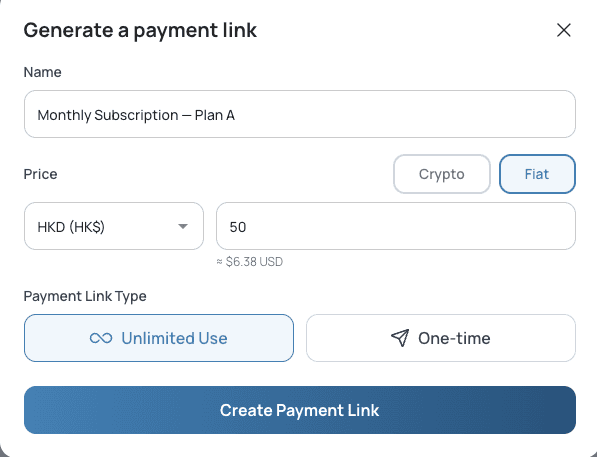
Click Create Payment Link in the top-right corner of the Payment Links page to open the Generate a payment link modal.
Step 1 — Enter a Name
Type a label for the link in the Name field. This appears in your dashboard records and on the customer checkout page.
Use Case | Example Name |
|---|---|
Subscription |
|
Invoice |
|
Retail / Café |
|
Point of Sale |
|
Step 2 — Set the Price
Select either Crypto or Fiat to define how you want to price the payment.
Crypto
Click Search token... and type to find your token
Each token displays its logo, ticker, and full name for easy identification
Enter the exact token amount to charge
Step | Example |
|---|---|
Search | Type |
Select | USDC · USD Coin |
Enter amount |
|
Result | Customer pays exactly 50 USDC |
Fiat
Click Search currency... and type to find your currency
Currencies display as code + symbol
Enter the fiat amount — customer pays the crypto equivalent at the live checkout rate
Step | Example |
|---|---|
Search | Type |
Select | HKD · HK$ |
Enter amount |
|
Result | Customer pays crypto equivalent of HK$100 at checkout rate |
⚠️ Minimum Transaction Amount
The minimum is $2 USD equivalent. The form will not submit below this threshold.
Example
❌ Too low
HK$5 (~$0.64 USD) — will fail
✅ Valid
HK$16 (~$2 USD) — will proceed
Step 3 — Choose Payment Link Type
Type | How It Works | Example Use Case |
|---|---|---|
♾ Unlimited Use | Reusable — accepts multiple payments | Café menu item, product page, tip link |
One-time | Expires after one successful payment | Client invoice, single order |
Step 4 — Create the Link
The Create Payment Link button stays greyed out until all required fields are filled. Once complete the button activates — click it to generate your live checkout URL instantly.
Understanding Price Types
KIRAPAY supports two price type models, visible in the Payment Links table as the 'Price Type' column:
Price Type | How It Works | Best For |
|---|---|---|
Fiat | You set a price in USD, EUR, or another fiat currency. KIRAPAY converts this to the equivalent crypto amount at the time of checkout using live rates. The customer always pays the correct fiat-equivalent regardless of token or chain. | E-commerce, subscriptions, invoices — any use case where the price is defined in fiat |
Crypto | You set a price in a specific crypto token (e.g. exactly 50 USDC). The customer pays that exact token amount. | Crypto-native use cases, DeFi integrations, or when you want to denominate pricing in crypto |
Customising Your Payment Link
Beyond the basic fields, you can enhance your payment links with additional configuration to match your business needs:
1. Description / Reference
Add a product name, order ID, or customer reference. This appears on the checkout page and in your transaction records — making reconciliation straightforward.
2. One-Time vs Unlimited Use
One-time links expire after a single successful payment — ideal for invoices. Unlimited links can be used repeatedly — ideal for product pages, tip links, or recurring services.
3. Brand Customisation
Your business name and logo (configured in Settings) automatically appear on every checkout page generated by your links — no per-link branding setup needed.
4. Redirect URL
Set a custom URL that customers land on after a successful payment. Send them to a confirmation page, a download, or back to your website.
Managing Existing Links
The Payment Links table gives you three quick actions for every link in the row:
Button | Action |
|---|---|
Copy icon | Copies the full checkout URL to your clipboard instantly |
QR code icon | Generates and displays a QR code for the link — download for print, in-person use, or embedding in documents |
External link icon | Opens the customer-facing checkout page in a new tab — preview exactly what your customers will see |
Payment Links — existing links with name, URL, pricing, and quick-action icons for copy, QR code, and preview
Filtering and Searching Links
Use the search bar to find links by name
Filter by Date Range, Price, or Status to narrow a large list
'More filters' provides additional options as your link library grows
Sharing Your Payment Link
A KIRAPAY payment link is a standard HTTPS URL — it works anywhere a URL works:
Email and invoices — paste directly into any email client or invoice template
Website buttons — link any 'Pay Now' or 'Buy' button to your checkout URL
Chat and messaging — share in WhatsApp, Telegram, Slack, Discord, or any messaging platform
Social media — post in your bio, stories, or posts
QR codes — generate and embed in print materials, product packaging, or physical signage
In-person — display the QR code on a screen or printed sheet for face-to-face payments
✅ No Wallet Address Needed: Payment links mean you never need to share your personal wallet address publicly. Every payment routes securely through KIRAPAY's checkout and settles directly to your configured wallet — keeping your address private and your setup clean.